Zyng AI API Documentation
Integrate Zyng AI's powerful image processing capabilities into your applications using our straightforward REST API.
Looking for enterprise APIs? View the enterprise integration guide →
Getting Started
Authentication
All API requests must be authenticated
using a Bearer Token. Include your API
key in the
Authorization
header for every request.
Authorization: Bearer {your_api_key}You can find your API key in your Zyng AI account dashboard: https://app.zyngai.com/account
Rate Limits & Request Queueing
Our API implements intelligent request queueing to ensure reliable processing even during high-volume periods. Unlike traditional rate limiting, requests exceeding your tier's limit are automatically queued rather than rejected.
Tier 1
Generally Available
requests per minute
Shared processing queue
Tier 2
Enterprise · Available on Request
requests per minute
Dedicated server & priority queue
Tier 3
Enterprise · Available on Request
requests per minute
Dedicated server & highest priority queue
Smart Request Queueing
When you exceed your tier's rate limit:
- Requests are automatically queued instead of returning errors
- All requests receive a successful response with a valid RID
- Processing order is maintained based on queue priority
- Higher tier customers enjoy faster queue processing
How to Upgrade Your Tier
To upgrade to an enterprise plan (Tier 2 or Tier 3), please email contact@zyngai.com. Include your current usage patterns and expected volume to help us better understand your needs. Higher tiers include:
- Dedicated processing servers
- Priority queue processing
- Webhook support
- Enhanced support response times
Base URL
All API endpoints are relative to the following base URL:
https://api.zyngai.comIndividual User APIs
The endpoints below cover the individual-user integration. For SKU-based processing with stored, inline, or conditional workflows, see Enterprise User APIs.
Individual API Flow
For individual users, register a request, submit images, then retrieve the results:
-
Register Request:
Send a
POSTrequest to initialize a processing job and receive a unique Request ID (rid). This step defines the workflow and output settings. -
Process Image(s):
Send one or more
POSTrequests, using theridobtained in step 1, providing the image URL (imglink) and a unique name for each image (image_name). -
Get Results:
Obtain processing results
through one of two methods:
-
Polling Method (All
Tiers):
Periodically send
GETrequests using theridto check processing status and retrieve results. - Webhook Method (Enterprise: Tier 2 & 3): Receive an automatic POST notification to your specified endpoint when processing completes. No polling required.
-
Polling Method (All
Tiers):
Periodically send
Webhook Availability
Webhooks are available for enterprise customers (Tier 2 and Tier 3), providing instant notifications when results are ready. See our rate limits section for tier details.
Individual Workflow & Output Parameters
The workflowDetails object defines the image-processing steps, and outputDetails defines the output settings. Copy both objects from your configured workflow in the Zyng web app under API.
Include the complete workflowDetails object, with wid and the inline workflow node array. A workflow ID alone is not sufficient for individual requests. Send identical workflowDetails and outputDetails objects when registering the request and processing each image.
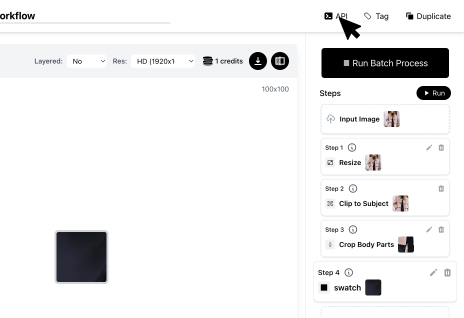
1. Navigate to your Workflow.
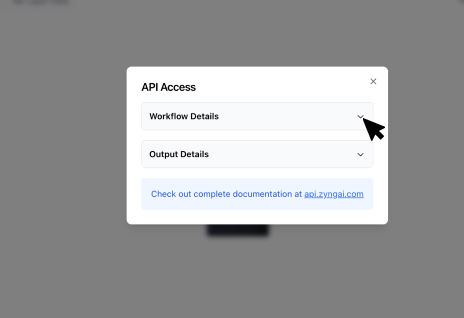
2. Find the API details section.
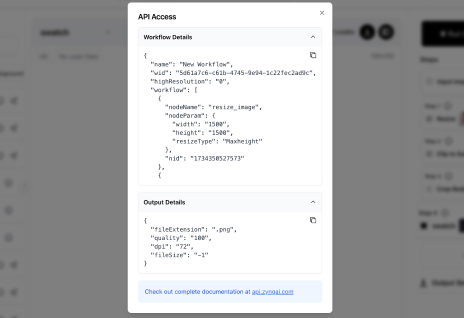
3. Copy the
workflowDetails
&
outputDetails
JSON.
1. Register Request
Initializes a new processing job session
and returns a unique Request ID (rid) required for subsequent image
processing calls within that session.
/process_image
Headers:
Content-Type: application/json
Authorization: Bearer {your_api_key}
Request Body:
{
    "task": "register_request",
    "workflowDetails": { /* Workflow configuration object from Zyng AI UI */ },
    "outputDetails": { /* Output configuration object from Zyng AI UI */ }
}
-
task: Must be set to
"register_request".
-
workflowDetails: The JSON object defining the
processing steps, copied from your
Zyng AI workflow settings.
-
outputDetails: The JSON object defining output
formats and destinations, copied
from your Zyng AI workflow settings.
Success Response (200 OK):
{
    "rid": "a_unique_generated_request_id"
}
-
rid: The unique identifier for this
processing session. Store this ID to
use in the next steps.
2. Process Image
Submits a single image for processing
under an existing Request ID (rid). You can call this endpoint multiple
times with the same
rid
for batch processing.
/process_image
Headers:
Content-Type: application/json
Authorization: Bearer {your_api_key}
Request Body:
{
   "rid": "a_unique_generated_request_id",
   "task": "process_image",
   "imglink": "https://your-image-host.com/path/to/image.jpg",
   "image_name": "product_photo_variant_1",
   "workflowDetails": { /* Same object as in register_request */ },
   "outputDetails": { /* Same object as in register_request */ }
}
-
rid: The ID received from the
"Register Request" step.
-
task: Must be set to
"process_image".
-
imglink: A publicly accessible URL to the
source image.
-
image_name: A unique name for this specific
image within the request. Used for
identifying results.
-
workflowDetails: Must be the *exact same* object
provided during registration.
-
outputDetails: Must be the *exact same* object
provided during registration.
Success Response (200 OK):
"Processing Images"A simple string confirmation indicates the image has been queued for processing.
3. Poll Results
Retrieves the status and results for a
processing request identified by its
rid.
Poll this endpoint periodically until
all expected images are processed.
/poll_results?rid={rid}
URL Parameters:
-
rid
(required): The Request ID obtained
from the "Register Request" step.
Headers:
Authorization: Bearer {your_api_key}Success Response (200 OK):
[
    {
        "iid": "https://images.zyngai.com/processed/path/product_photo_variant_1.png",
        "layers": false,
        "name": "product_photo_variant_1.png",
        "rid": "a_unique_generated_request_id"
    },
    {
        "iid": "https://images.zyngai.com/processed/path/product_photo_variant_2.jpg",
        "layers": false,
        "name": "product_photo_variant_2.jpg",
        "rid": "a_unique_generated_request_id"
    }
    // ... more image results if available
]
Returns a JSON array. Each object in
the array represents a successfully
processed image from the request.
-
iid: The URL to the final processed
image.
-
name: The filename, often derived from
the
image_name
provided during processing.
-
rid: The request ID this result
belongs to.
-
layers: Indicates if layer information is
available (typically false unless
specifically configured).
Note:
The endpoint returns an empty array
[]
if processing is still ongoing or if
no images have completed yet for the
given
rid. Continue polling until the array
contains the expected number of
results. Implement appropriate
delays and retry logic in your
polling mechanism.
Webhook Alternative
Tier 2 and Tier 3 are enterprise plans. Enterprise customers can receive webhook notifications when processing completes, eliminating the need for polling.
When using Enterprise APIs, provide your callback endpoint in the webhook_url field when submitting a processing request.
Enterprise User APIs
API Flow
The typical interaction with the enterprise API follows these steps:
- Enable a Workflow: For a stored workflow (Mode 0), open the workflow in Zyng and enable Enterprise API → Lock. For a conditional workflow (Mode 2), lock the default workflow and every route workflow. For an inline workflow (Mode 1), supply the steps and output settings directly in your request.
- Submit a Product: Send a
POSTrequest to/enterprise/v1/processwith yoursku_id, images, and chosen workflow mode. The API queues the images and returns a unique Request ID (rid). Save this ID to track the submission. - Get Results: Obtain processing results through one of two methods:
- Polling: Send
GETrequests to/enterprise/v1/statususing the returnedridto check that submission, orsku_idto retrieve the latest status for the product. Check the request status and per-image results for output URLs and errors. - Webhook Callbacks: Provide your callback endpoint in
webhook_urlwhen submitting the product to receive processing-completion notifications.
- Polling: Send
Enterprise APIs are available to Tier 2 and Tier 3 customers. To upgrade to an enterprise plan, email contact@zyngai.com to request Tier 2 or Tier 3 access. Once Zyng enables enterprise access for your account, use your API key to authenticate requests. Processing requires an available credit balance. Stored workflows must be locked for enterprise API use, contain at least one node, and have complete output settings.
| Operation | Method | Path |
|---|---|---|
| Submit images | POST | /enterprise/v1/process |
| Status by request | GET | /enterprise/v1/status?rid=<REQUEST_ID> |
| Status by SKU | GET | /enterprise/v1/status?sku_id=<SKU_ID> |
1. Enable a workflow for enterprise use
Open a configured workflow in the Zyng desktop web app. The Enterprise API control is available for enterprise-enabled accounts. Use it to lock the saved workflow before referencing its ID in an enterprise request.
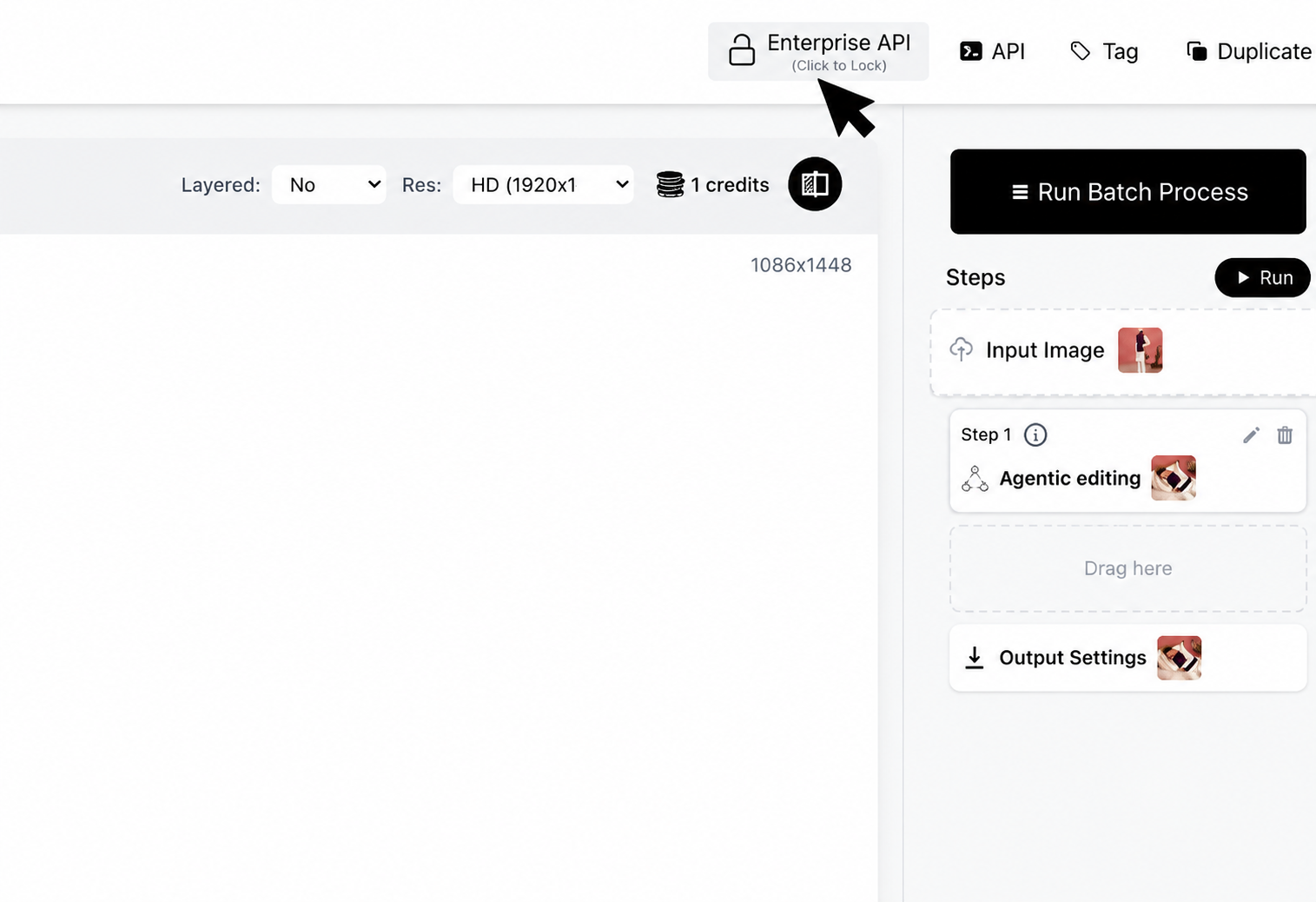
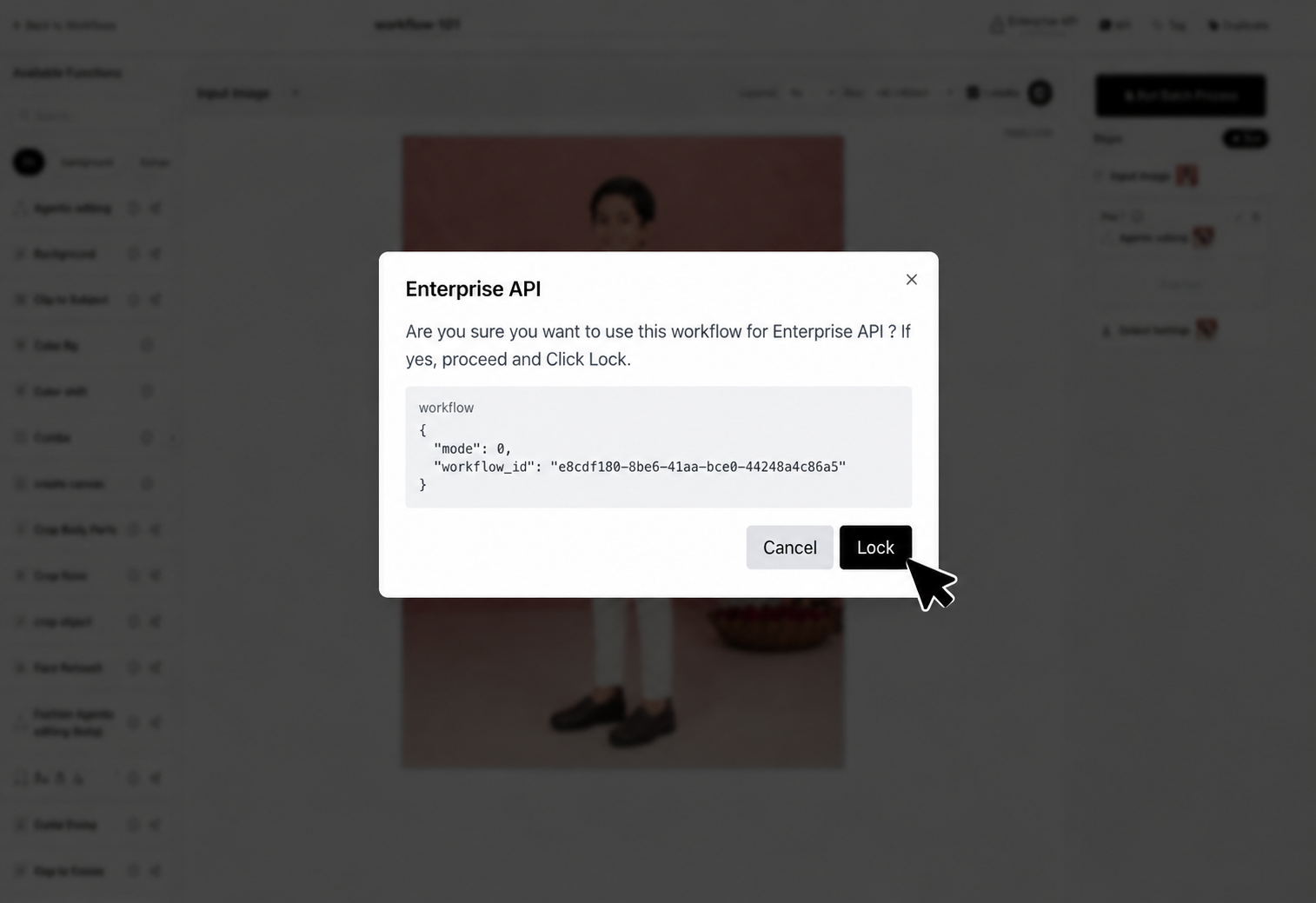
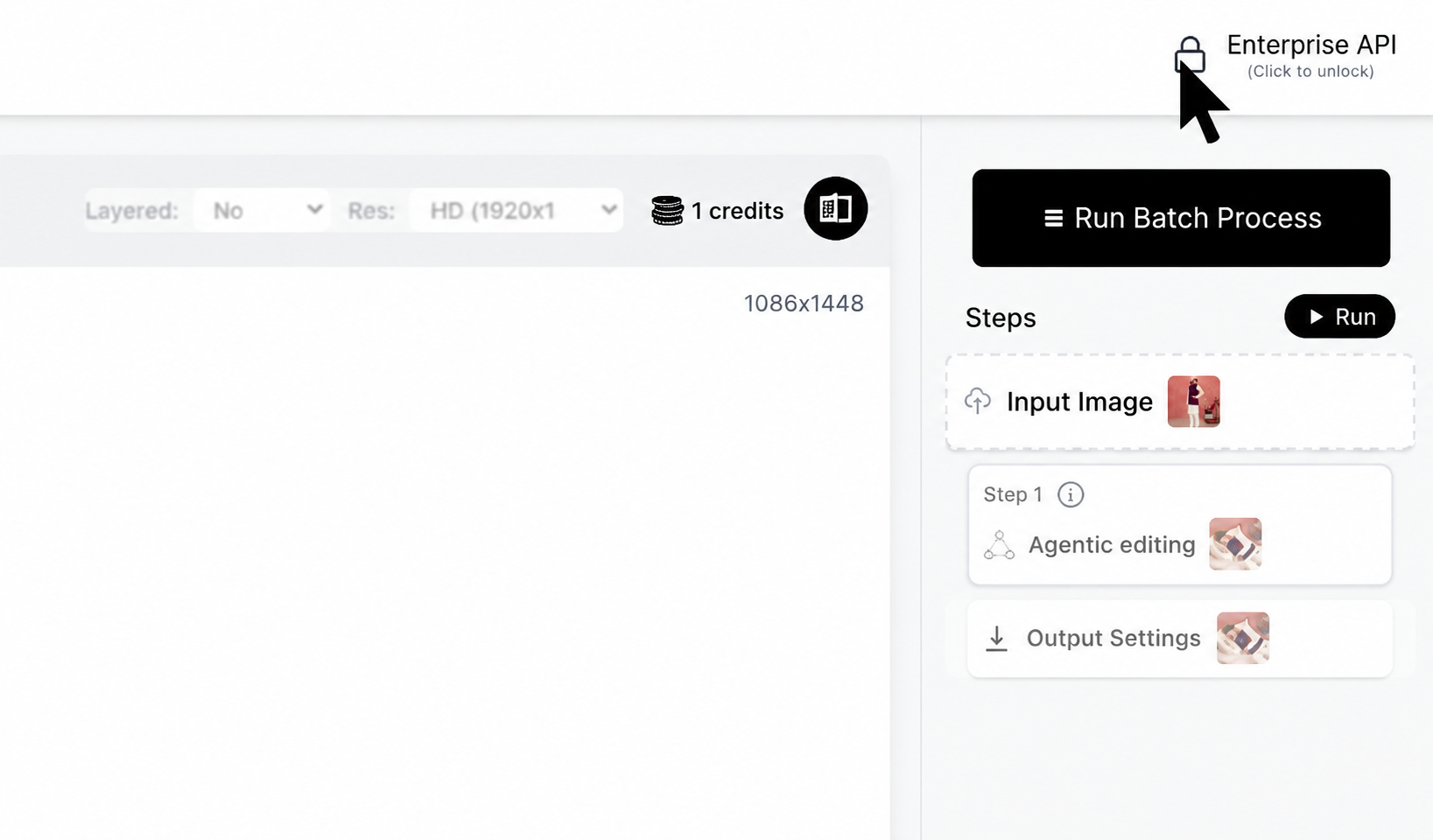
For Mode 0, use the workflow ID shown in the dialog. For Mode 2, lock the default workflow and every route workflow. Mode 1 supplies its workflow inline and does not require this setup.
Locking makes the workflow read-only in the editor. To edit it, select Enterprise API → Unlock, make your changes, and lock it again before using it in new enterprise requests. The workflow ID in the screenshot is an example; use your own ID.
2. Submit a product
POST/enterprise/v1/process
The following examples are complete request templates. Replace <api_key>, workflow IDs, SKU/image identifiers, and the source image URL with your own values. Each request selects exactly one workflow mode.
| Field | Usage |
|---|---|
sku_id | Your product/SKU identifier; also used to look up status. |
images | Image entries with image_id, a source url, and image metadata as shown below. |
workflow | Choose one mode: 0 (stored), 1 (inline), or 2 (conditional). |
sku_metadata | Product context. product_category is required when conditional routes use angle_back or is_zoomed. |
force_retry | Examples use false. Confirm retry behavior with Zyng before changing it or automatically resubmitting. |
webhook_url | Examples leave this empty and use status polling. Confirm webhook setup and delivery details with Zyng before integrating callbacks. |
Mode 0 · Stored workflow
Use the workflow and output settings already configured in Zyng. Replace <DEFAULT_WORKFLOW_ID> with a workflow enabled for enterprise API access.
curl --request POST "https://api.zyngai.com/enterprise/v1/process" \
  --header "Authorization: Bearer <api_key>" \
  --header "Content-Type: application/json" \
  --data-raw '{
    "sku_id": "SKU-001",
    "force_retry": false,
    "sku_metadata": {
      "product_category": "shirt",
      "gender": "unisex",
      "product_description": "",
      "combo": false
    },
    "images": [
      {
        "image_id": "img_front_001",
        "url": "https://your-image-host.com/product-front.jpg",
        "metadata": {
          "angle": "front",
          "is_primary": true
        }
      }
    ],
    "workflow": {
      "mode": 0,
      "workflow_id": "<DEFAULT_WORKFLOW_ID>"
    },
    "webhook_url": ""
  }'
Mode 1 · Inline workflow
Provide nodes and output settings directly. steps must contain at least one node, each with a non-empty nodeName. Supply nodeParam as an object. outputDetails requires non-empty fileExtension, quality, dpi, and fileSize; the extension must start with a dot.
curl --request POST "https://api.zyngai.com/enterprise/v1/process" \
  --header "Authorization: Bearer <api_key>" \
  --header "Content-Type: application/json" \
  --data-raw '{
    "sku_id": "SKU-001",
    "force_retry": false,
    "sku_metadata": {
      "product_category": "shirt",
      "gender": "unisex",
      "product_description": "",
      "combo": false
    },
    "images": [
      {
        "image_id": "img_front_001",
        "url": "https://your-image-host.com/product-front.jpg",
        "metadata": {
          "angle": "front",
          "is_primary": true
        }
      }
    ],
    "workflow": {
      "mode": 1,
      "steps": [
        {
          "nodeName": "Crop_Face",
          "nodeParam": {}
        },
        {
          "nodeName": "MagicResize",
          "nodeParam": {
            "width": "2400",
            "height": "3286",
            "unit": "0"
          }
        }
      ],
      "outputDetails": {
        "fileExtension": ".png",
        "quality": "95",
        "dpi": "72",
        "fileSize": "-1"
      }
    },
    "webhook_url": ""
  }'
Mode 2 · Conditional workflow
Select stored workflows using image-analysis conditions, with a default workflow when no route matches. Every default and route workflow must be enabled for enterprise API access.
| Condition | Product category requirement |
|---|---|
human_detection | No additional category requirement documented. |
angle_back | Requires sku_metadata.product_category. |
is_zoomed | Requires sku_metadata.product_category. |
Each route needs at least one condition in all_true or all_false. A condition cannot appear in both lists in the same route. Only the three conditions above are supported.
curl --request POST "https://api.zyngai.com/enterprise/v1/process" \
  --header "Authorization: Bearer <api_key>" \
  --header "Content-Type: application/json" \
  --data-raw '{
    "sku_id": "SKU-001",
    "force_retry": false,
    "sku_metadata": {
      "product_category": "shirt",
      "gender": "unisex",
      "product_description": "",
      "combo": false
    },
    "images": [
      {
        "image_id": "img_front_001",
        "url": "https://your-image-host.com/product-front.jpg",
        "metadata": {
          "angle": "front",
          "is_primary": true
        }
      }
    ],
    "workflow": {
      "mode": 2,
      "default": {
        "workflow_id": "<DEFAULT_WORKFLOW_ID>"
      },
      "routes": [
        {
          "when": {
            "all_true": ["human_detection"],
            "all_false": []
          },
          "workflow_id": "<HUMAN_WORKFLOW_ID>"
        },
        {
          "when": {
            "all_true": ["angle_back"],
            "all_false": ["is_zoomed"]
          },
          "workflow_id": "<BACK_WORKFLOW_ID>"
        }
      ]
    },
    "webhook_url": ""
  }'
Accepted response
All three modes return the same accepted response structure. queued means the request was accepted for asynchronous processing; it does not indicate completion. Save rid to check this request.
{
  "rid": "<REQUEST_ID>",
  "sku_id": "SKU-001",
  "status": "queued",
  "images_queued": {
    "total": 1
  },
  "created_at": "<TIMESTAMP>"
}
3. Check status and retrieve outputs
GET/enterprise/v1/status
Look up a submitted request by rid, or retrieve the latest status for a SKU using sku_id. The examples show these as separate queries.
curl "https://api.zyngai.com/enterprise/v1/status?rid=<REQUEST_ID>" \
  -H "Authorization: Bearer <api_key>"
curl "https://api.zyngai.com/enterprise/v1/status?sku_id=SKU-001" \
-H "Authorization: Bearer <api_key>"Completed response example
{
  "rid": "<REQUEST_ID>",
  "sku_id": "SKU-001",
  "status": "completed",
  "created_at": "<TIMESTAMP>",
  "completed_at": "<TIMESTAMP>",
  "results": [
    {
      "image_id": "img_front_001",
      "status": "processed",
      "output_url": "<OUTPUT_IMAGE_URL>",
      "errors": [],
      "metadata": {}
    }
  ]
}
The top-level status describes the request. Each entry in results identifies the input with image_id and includes its image status, output_url, errors, and metadata. The example shows a completed request with a processed image.
Poll with a delay while processing is pending. Use the returned rid to follow the specific submission. Confirm production polling intervals, rate limits, and failure handling with your Zyng contact.